


You are standing in a plant room with a printed Pixel Designer layout in one hand, working out which controllers the show actually needs. ELM 26.11.15 settles that before you leave the office, and then checks your work once the cables are in.
This release is for installers, integrators and designers who commission pixel shows from Pixel Designer files. It also adds a few things for permanent installations, seasonal designers and anyone running ELM on a laptop. We will take the controller workflow first, in the order you would meet it on a job.
Arrive knowing which controllers the show needs
Pixel Designer is ENTTEC’s free online tool for designing pixel installations. ELM has long imported the layout and patch from a design. Now the import also lists every controller the show needs in Device manager › Project.
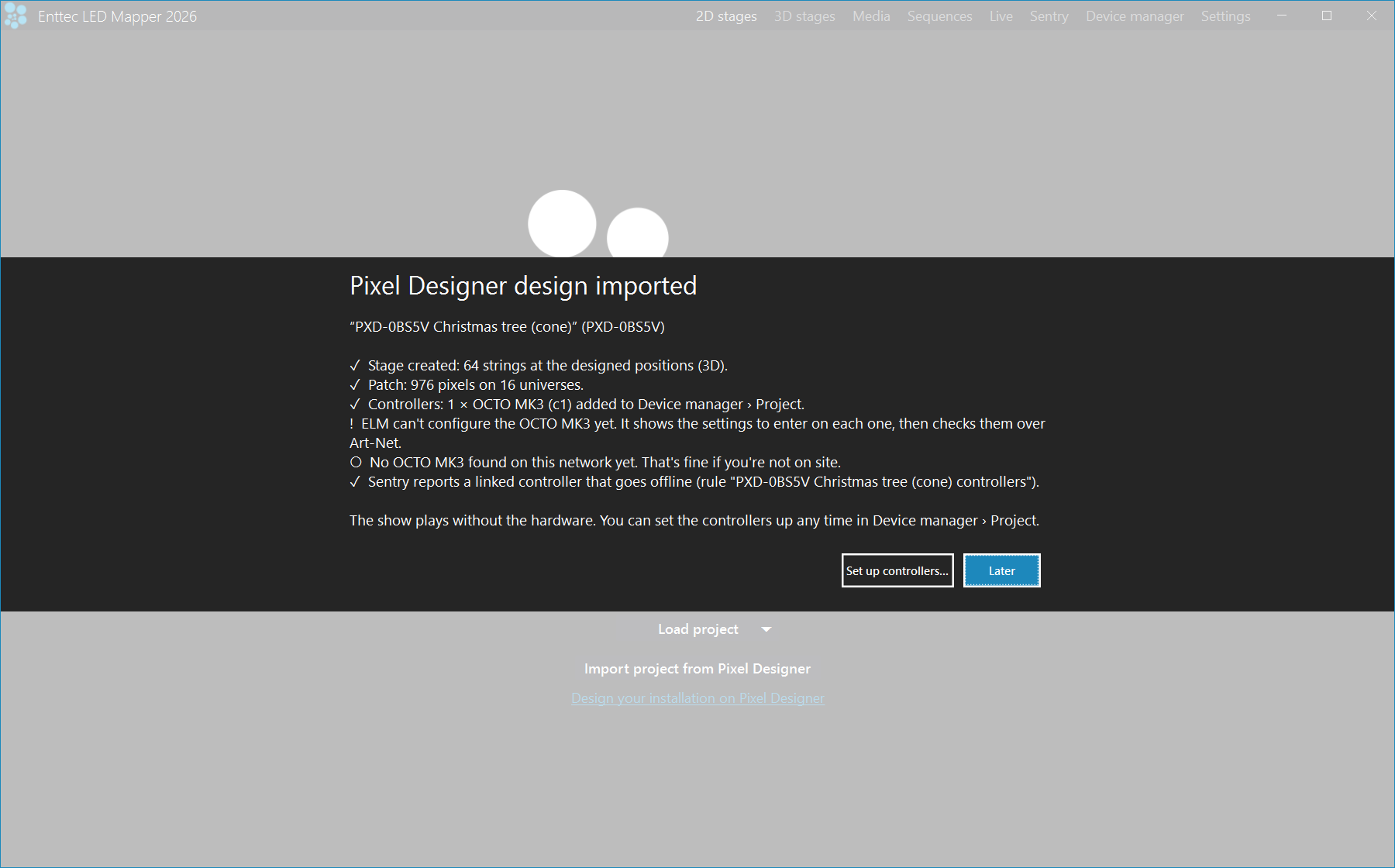
Each one appears as “waiting for its hardware”. In the example below, a design imported with four OCTO MK3 controllers. The import summary lists what was created: the stage, the patch (pixels and universes), the controllers and a Sentry alert rule.
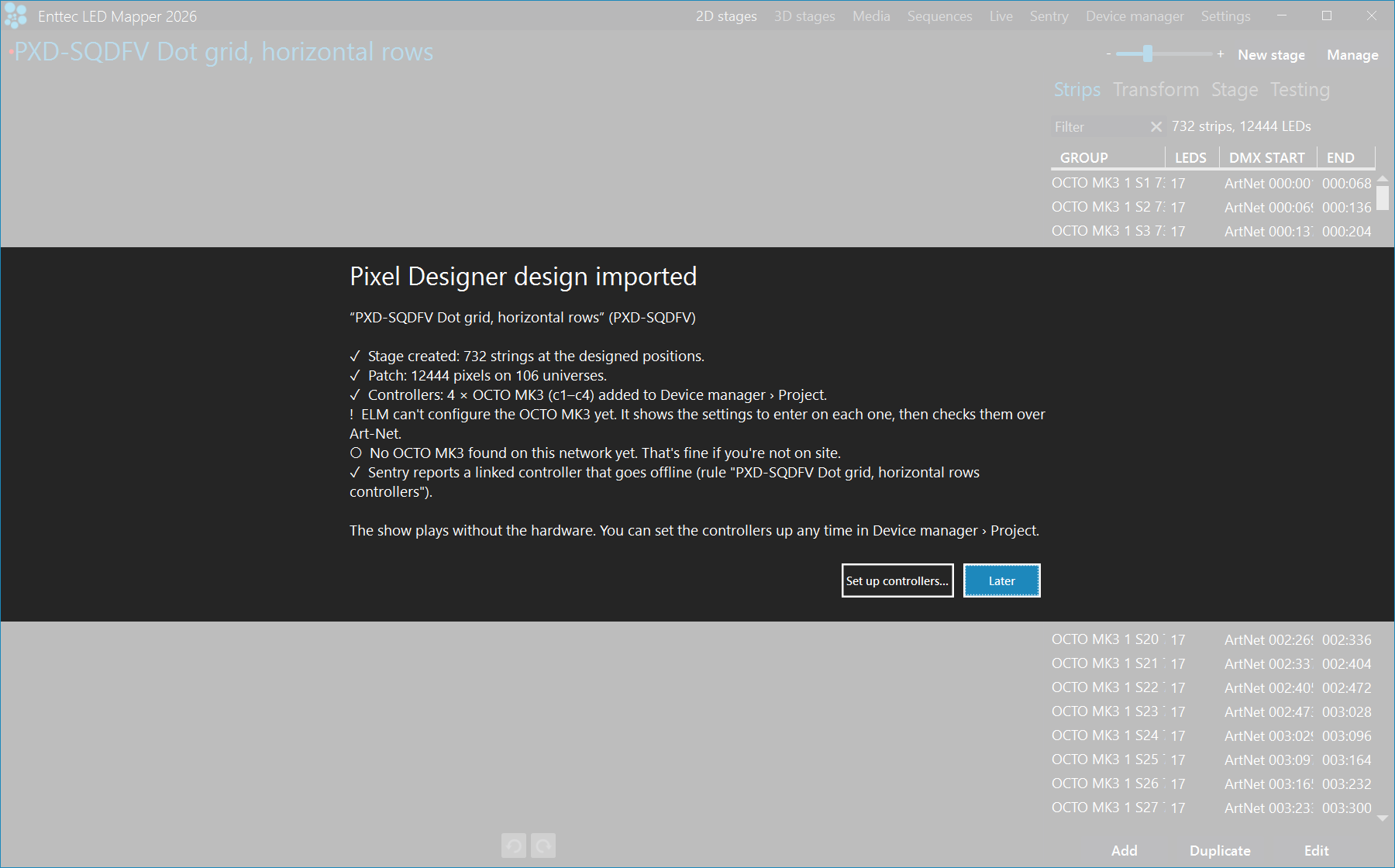
That is the shopping list and the setup list in one place. You know what to put in the van, and what to configure when you get there.
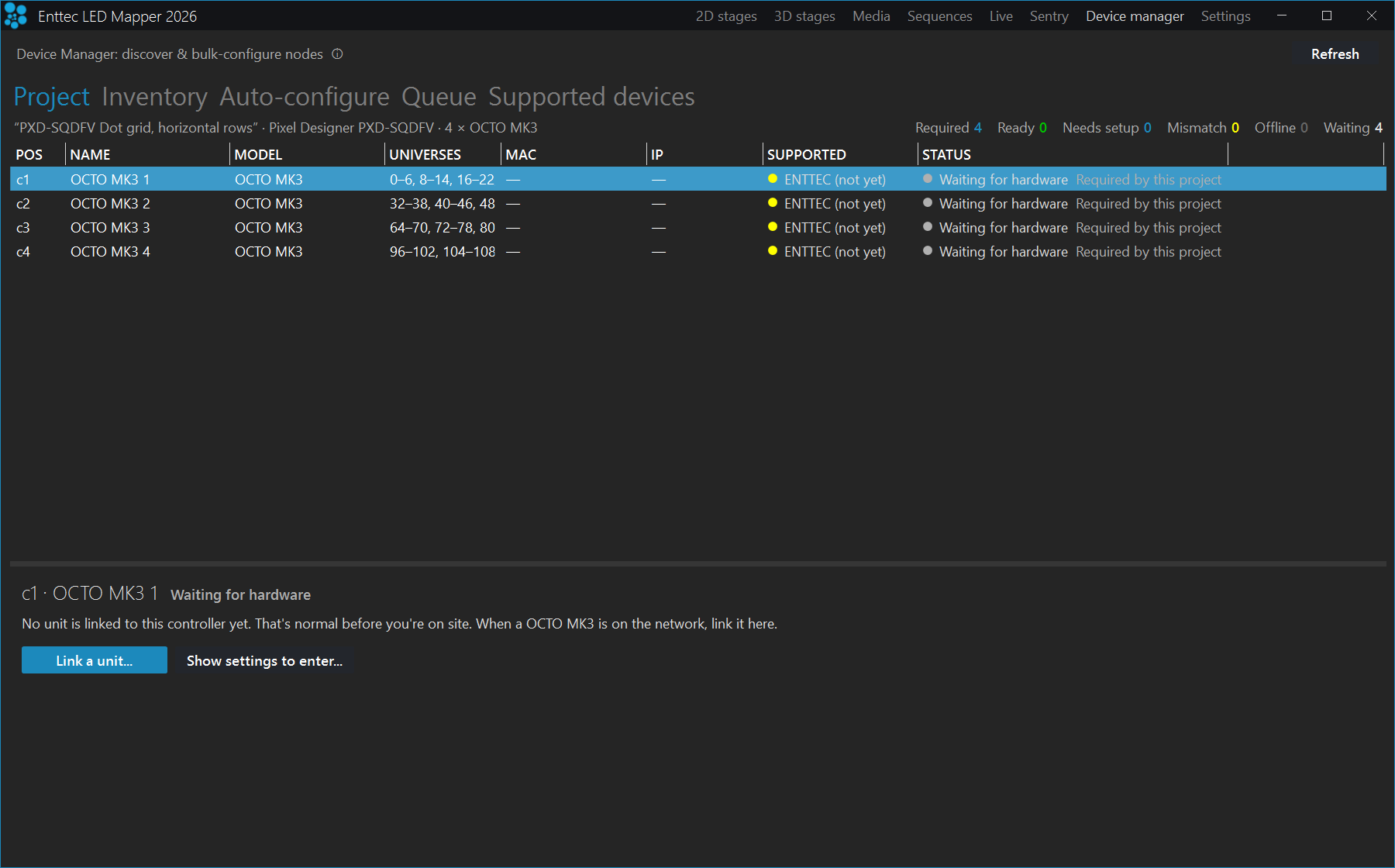
Link each controller to a real unit
On site, link each design controller (c1, c2 and so on) to the physical unit on your network, again in Device manager › Project. Linking from the design means fewer settings typed by hand, and fewer typing errors in the patch.
What happens next depends on the hardware, and we want to be plain about it. ELM configures DIN Ethergate and Storm nodes itself. ELM cannot yet configure OCTO or Pixelator controllers.
For those two, ELM shows you the settings to enter on the controller’s own web page:
- input protocol
- IP address
- per output: pixel type, pixel count, universes, colour order and bit depth
You type them in, and ELM checks the result.
Catch the wrong universes before the client does
Once a controller is linked, ELM compares it against the design using the Art-Net reports the unit sends back. It also keeps the show output pointed at each controller’s address.
If a controller is listening on the wrong universes, ELM says so for each output. A message such as “Output 3: not listening to universe(s) 48–54” tells you which output to open, rather than leaving you to find a dark section of the build by eye. Each controller shows one of five statuses: Ready, Needs setup, Mismatch, Offline or Waiting.
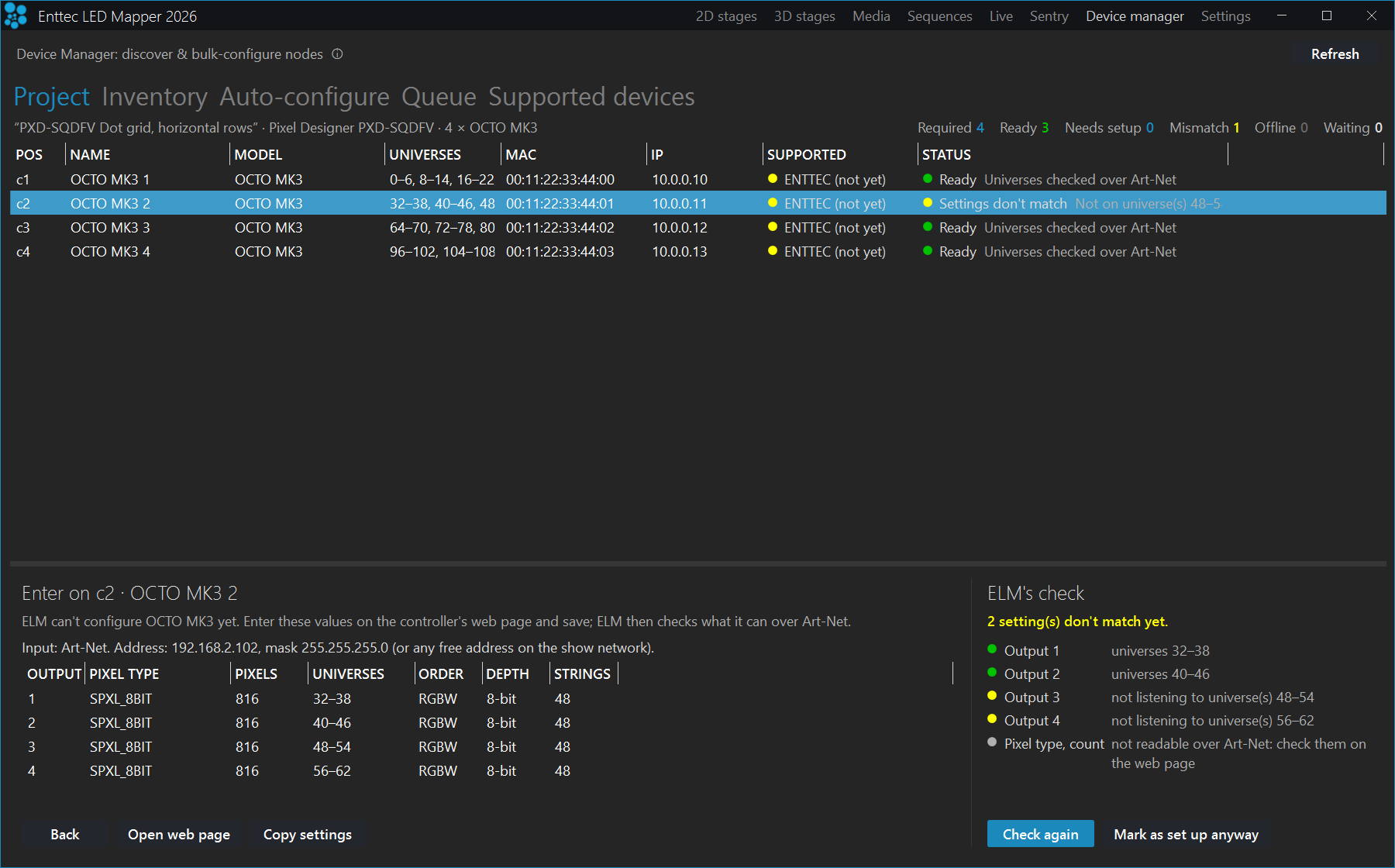
The check works for any Art-Net controller, including models ELM cannot configure. You do not need ELM to set a unit up in order to have ELM verify it.
Get told when a controller drops off
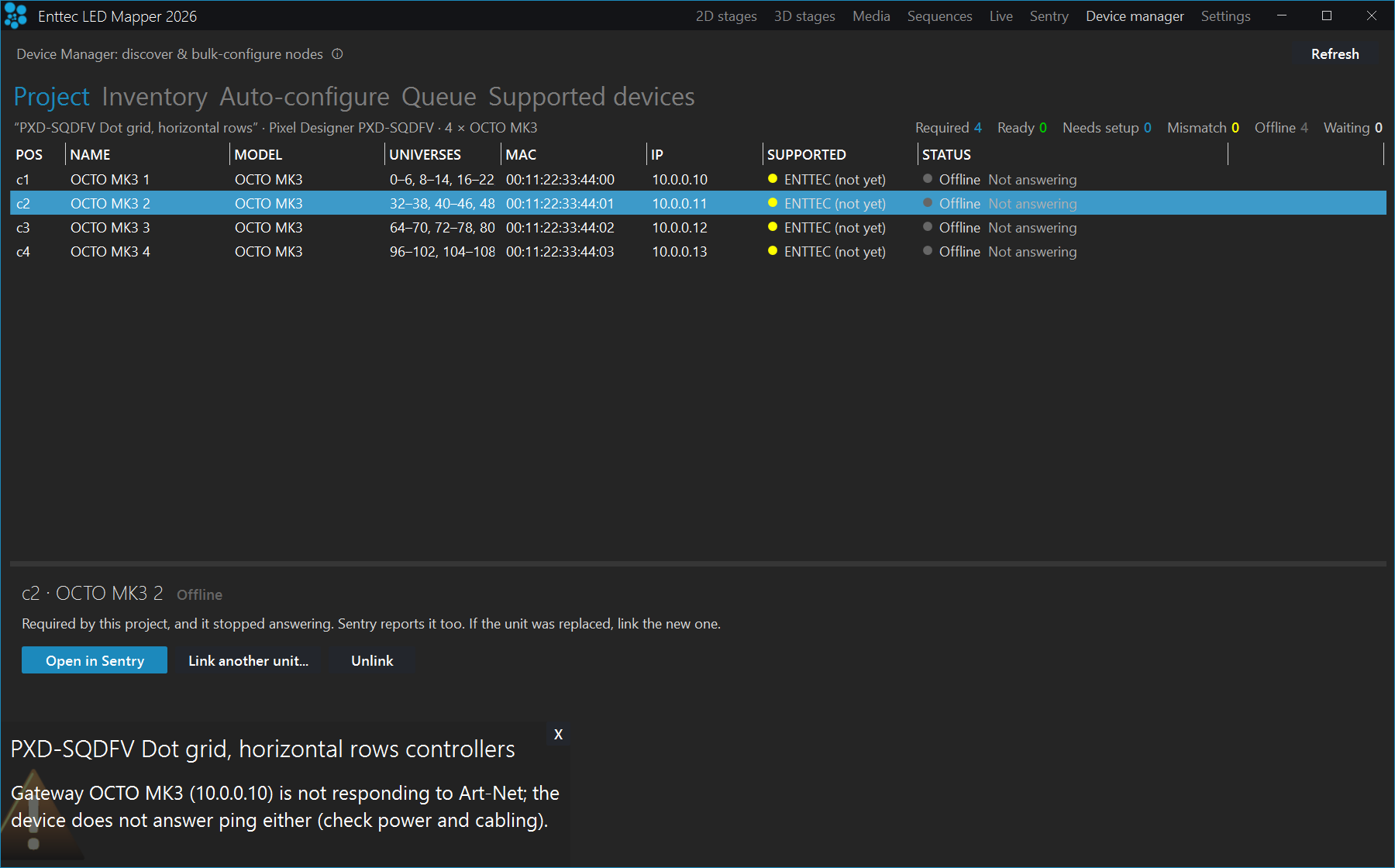
The import adds a Sentry alert rule automatically. If a controller linked to the show goes offline, Sentry raises the alert, so somebody hears about it. A controller you have not linked yet never raises an alarm, so a half-finished commissioning does not fill your inbox.
A tree, not a fan
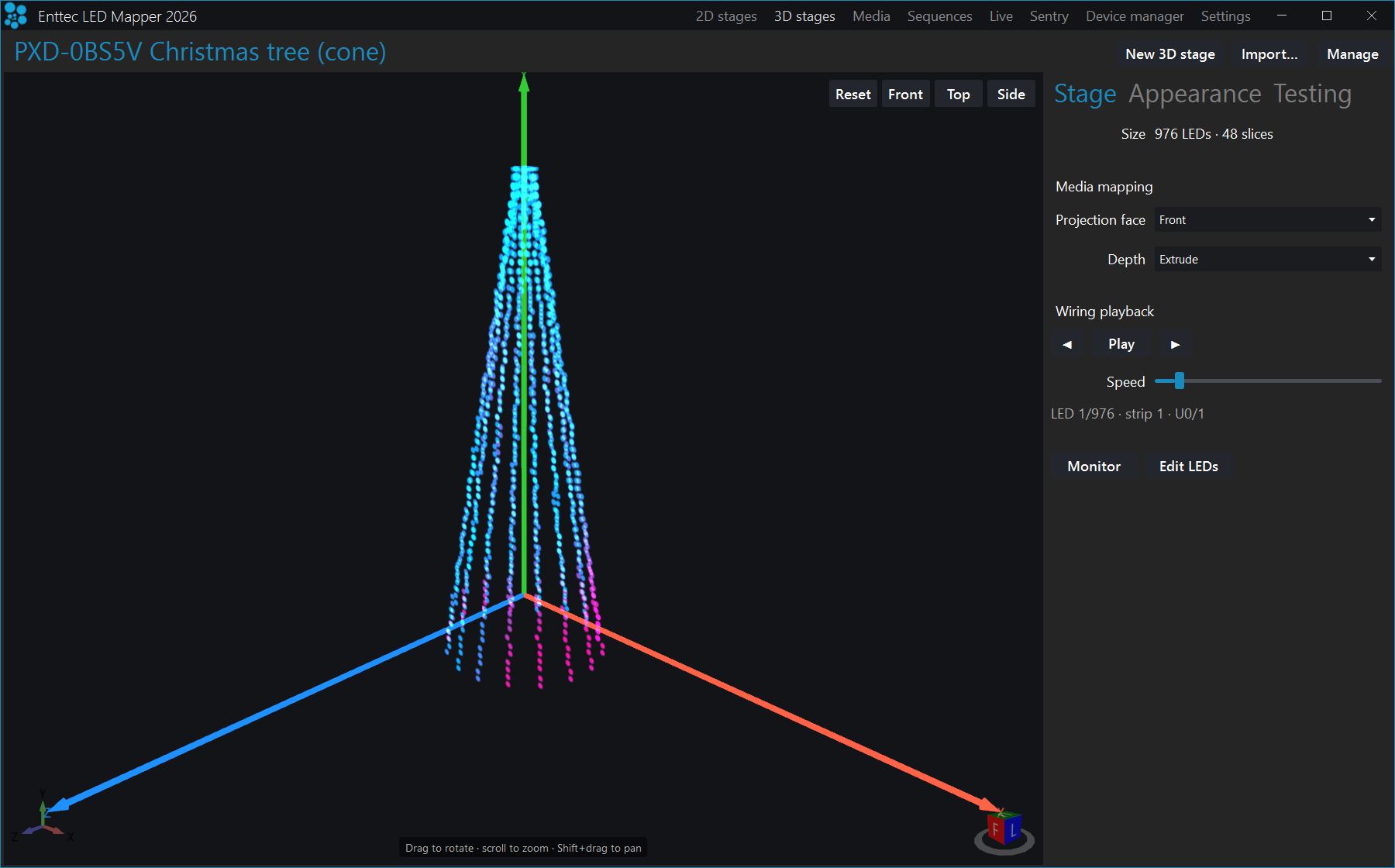
Designs made in 3D Pixel Designer now import as a real 3D stage. A pixel Christmas tree arrives as a cone. Older versions unrolled it flat, so a 3D effect ran across a fan instead of the shape you built.
The example is public design PXD-0BS5V on pixeldesigner.enttec.com: 64 strings, 976 pixels on 16 universes, driven by one OCTO MK3. The import places the 64 strings at the designed positions in 3D. The effect in the screenshot is projected across the cone from the front.
It lands in good time for the Christmas season, which is not an accident, but it works for any sculptural object.
Schedules that follow the evening, not the clock
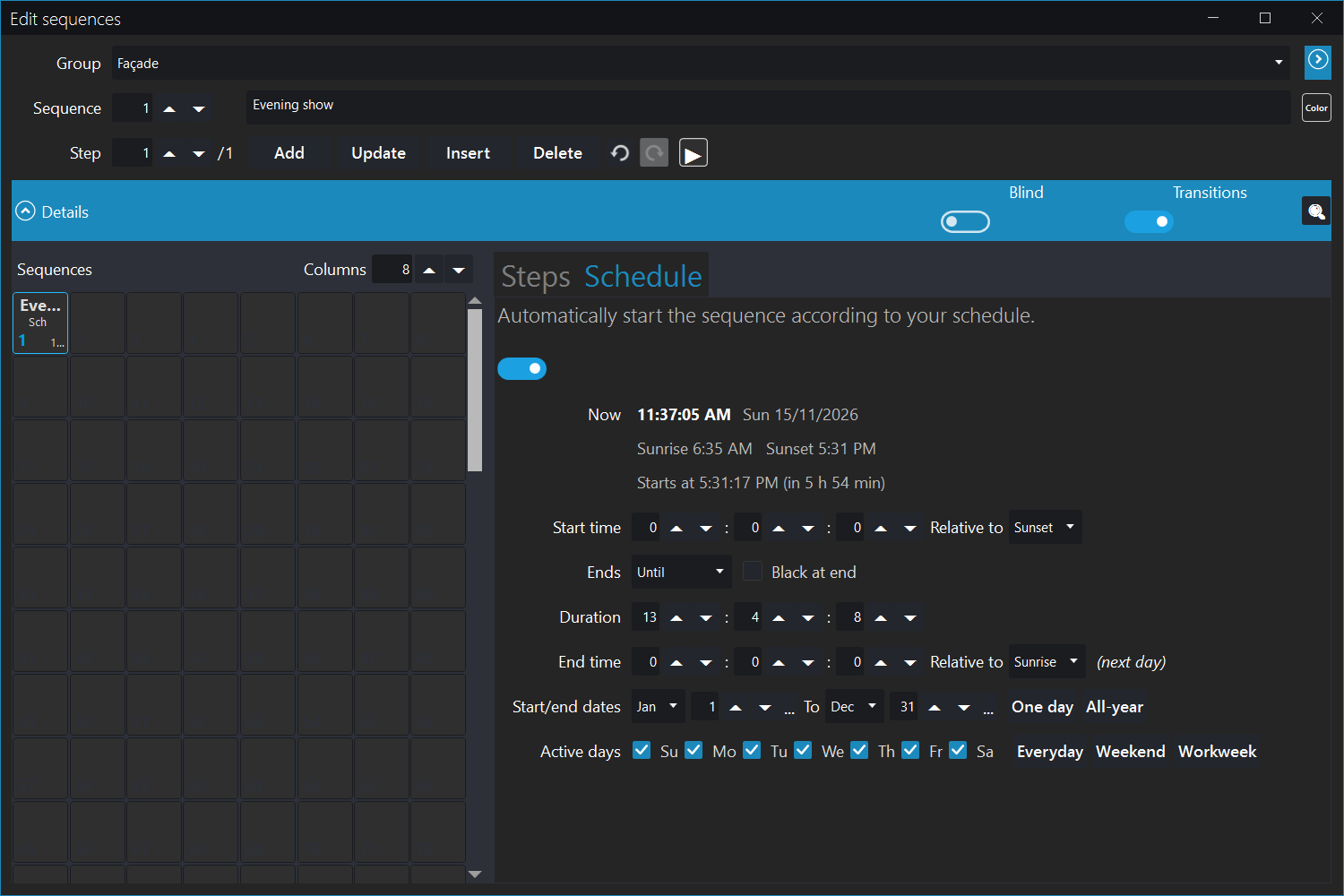
Under Ends in the schedule, there is a new Until mode. Set a start and an end, such as 18:00 until 23:30, or Sunset until Sunrise. ELM works out the duration and handles a show that runs past midnight.
For façades, hospitality, retail and landmarks, that means dusk-to-dawn or opening-hours running without anyone adjusting times as the seasons change. The Schedule tab also shows the current time, today’s sunrise and sunset and the next start, so there is no need to open Settings to check.
Know whether the computer can run the show
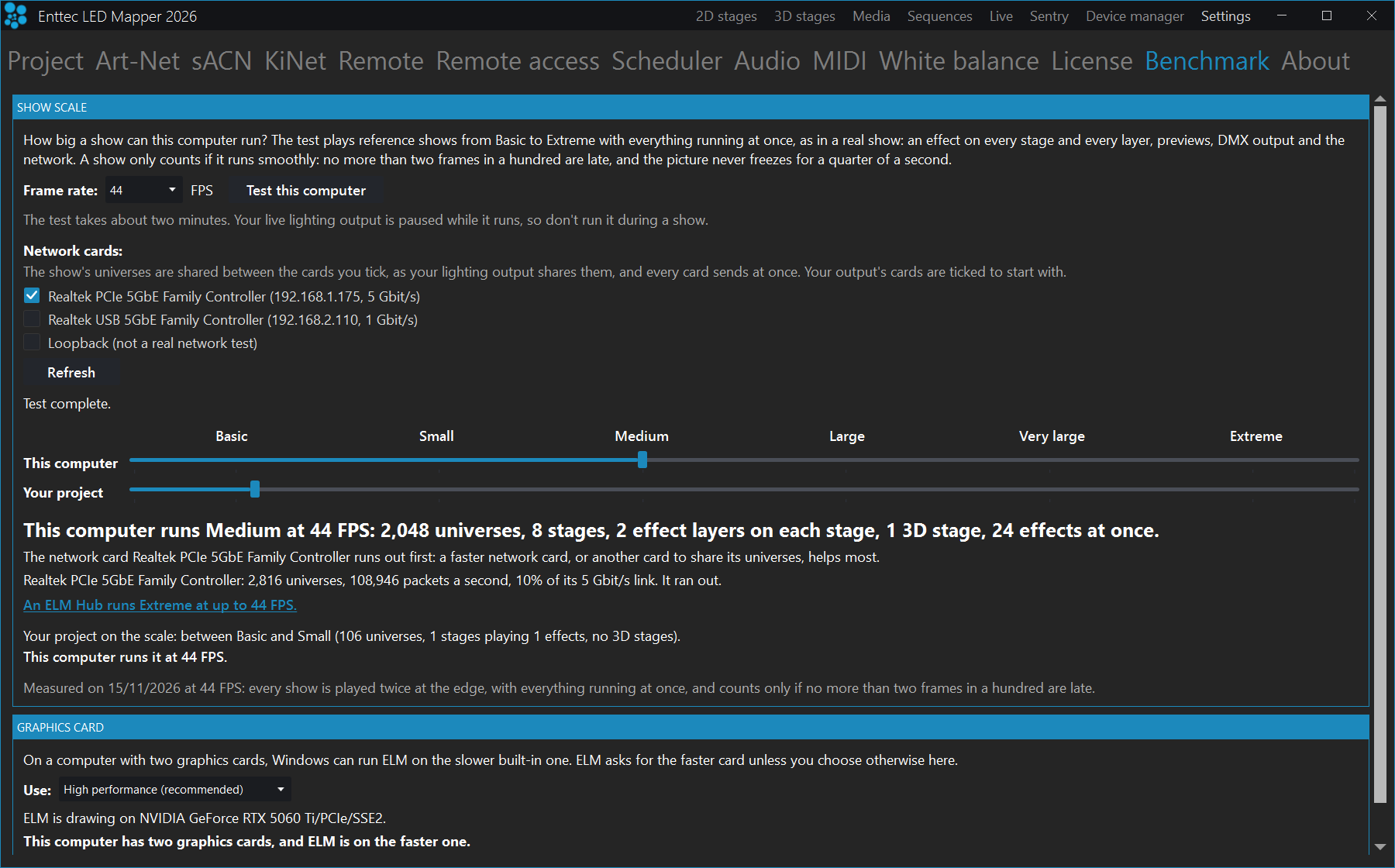
Settings › Benchmark now rates the computer and the project on one six-level scale: Basic, Small, Medium, Large, Very large and Extreme. You can see where your PC sits and where your project sits, which is useful when you are specifying a machine or quoting a job.
If something limits the result, ELM names what runs out first, such as the processor or the network card, with advice. It also shows how each ticked network card keeps up. The test plays reference shows with everything running at once, and a level only counts if playback stays smooth: no more than 2 frames in 100 late, and no freeze longer than 0.25 seconds.
The show pauses while the test runs, and ELM asks first if one is playing, so the test has the computer to itself.
Laptops with two graphics cards
On laptops with two graphics cards, ELM now asks Windows for the fast one, rather than quietly running on the slower built-in graphics. The change takes effect the next time ELM opens. Under Settings › Benchmark › Graphics card you can choose High performance (recommended), Power saving or Let Windows decide, and ELM shows which card it is actually using.
Smaller changes worth knowing
- Automatic unicast for Art-Net sends each universe only to the nodes using it, which means less traffic on large rigs and shared networks. It is on by default in new projects; existing projects can switch it on in the Art-Net settings.
- Beat detection gains a Detection speed setting. Fast follows a tempo change within a few seconds. Steady, the default, holds the tempo through breaks.
- 16-bit fixtures now use the full 16-bit range, for smoother fades and low dim levels.
The release also tightens playback and housekeeping: network card handling, Single mode output, schedules restored after a restart, sequence transition directions and several unclear labels.
Get the update
ELM desktop updates itself: just open ELM and follow the in-app prompt. New installs use the ELM installer from ENTTEC’s download page. In China, the ENTTEC China download mirror carries the same release.
Nearly all of these changes were tried in ELM Preview from 4 November 2026, so thank you to everyone who ran it on real jobs and sent feedback.
To design your next show, Pixel Designer is free to use online.